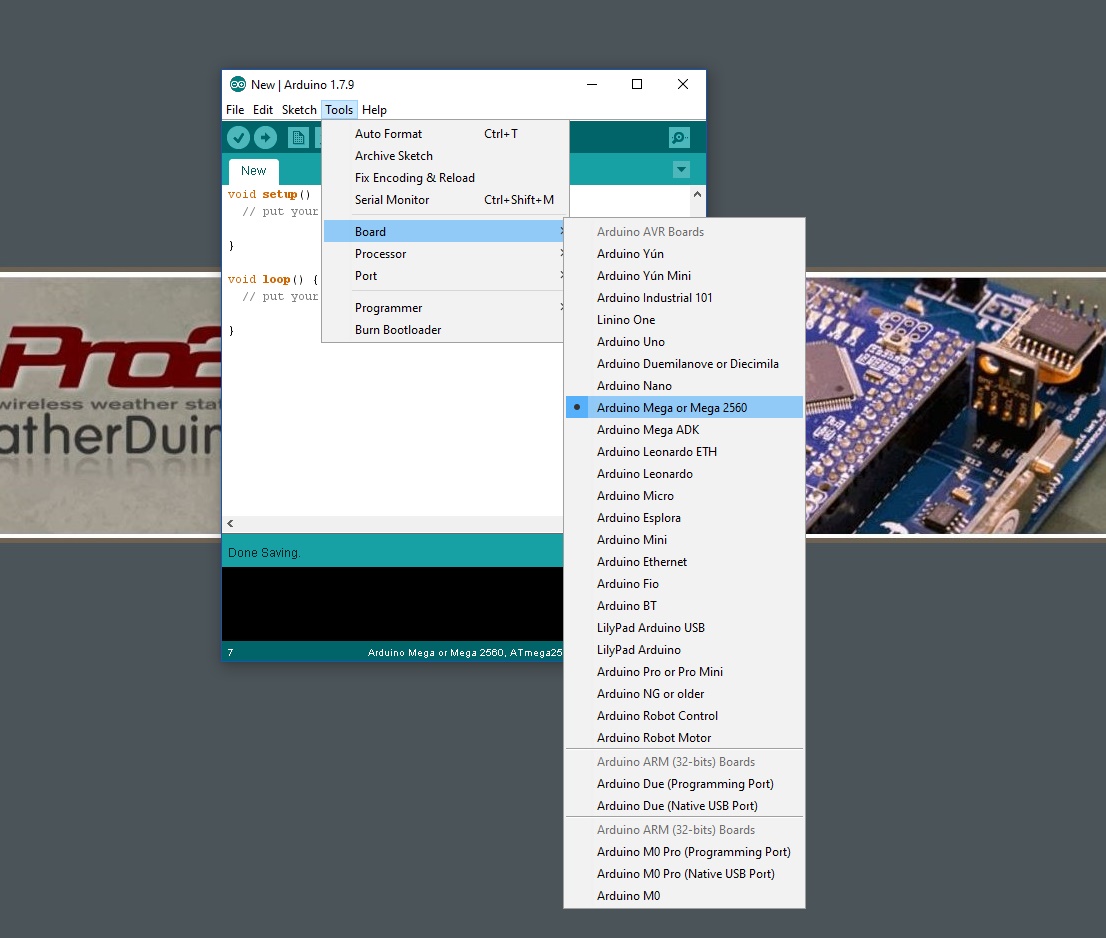
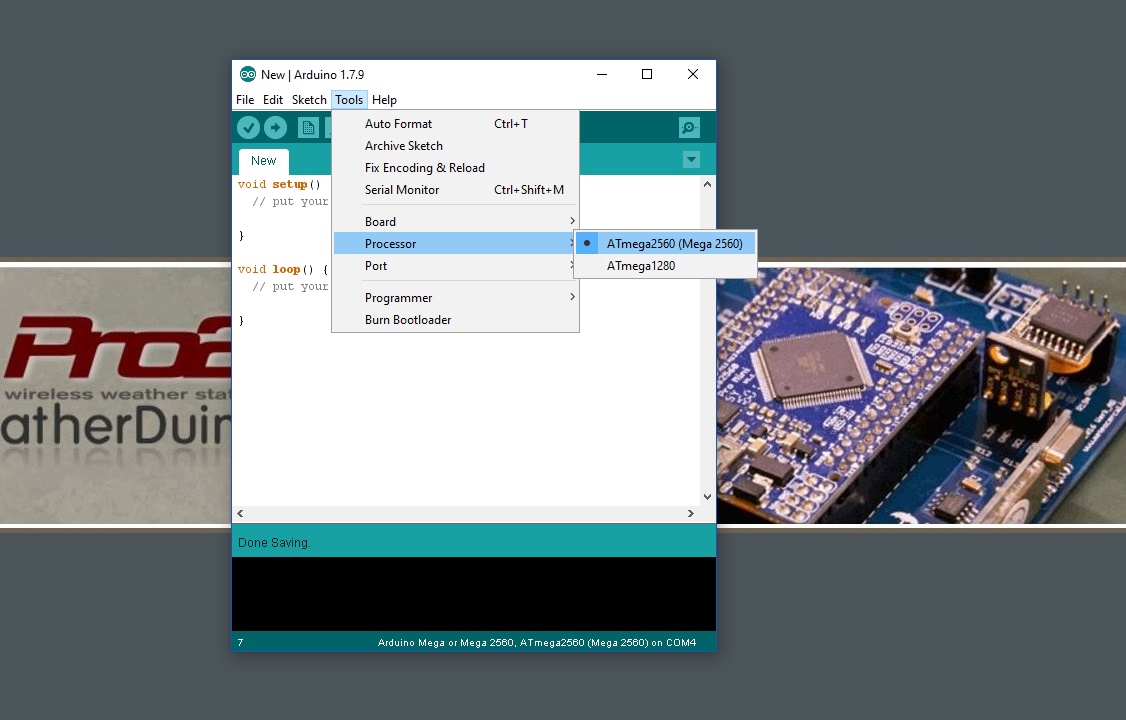
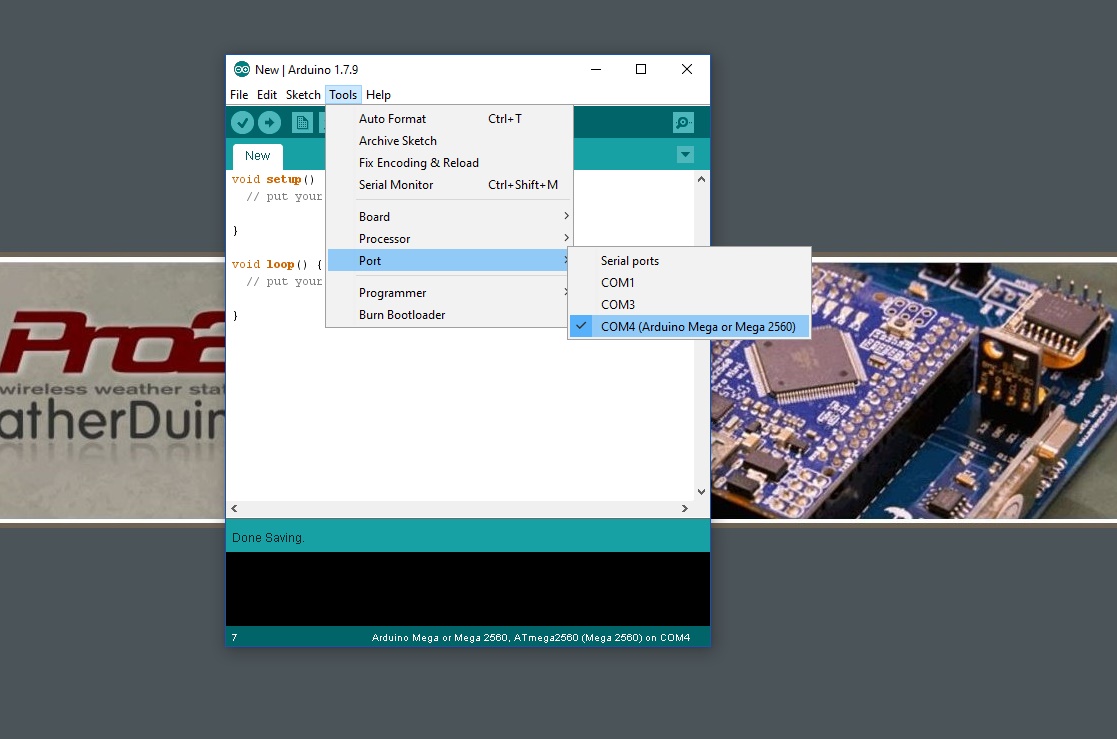
So you’ve got your new Meduino Mega2560 Pro Mini module and your probably keen to test it out and get started on something, even if your still waiting for your parts to arrive. It's also probably not a bad idea to test your Meduino module and ensure that you haven’t received a faulty module, and in the process you’ll also get your computer setup with Arduino IDE software and ready for your WeatherDuino project.
Throughout this build thread I’ll presume that you are using a Windows based computer. If you haven’t already done so, go to the Arduino website and download the IDE software at the following URL:
https://www.arduino.cc/en/main/software
Once you’ve installed the IDE software on your computer, connect your Meduino module via a Mini USB cable. Your computer should do a “plug and play” and load a device driver for the module, which should have been installed with the IDE software. You should see the 'ON' LED on the Meduino module come to life upon connection to the computer.
To confirm that the device driver has loaded correctly, go to Control Panel… System… Device Manager… Ports, and look for “Arduino Mega 2560” and confirm that there isn’t any yellow exclamation mark or question mark beside this device. If there is you will need to look at reloading the device driver into windows.
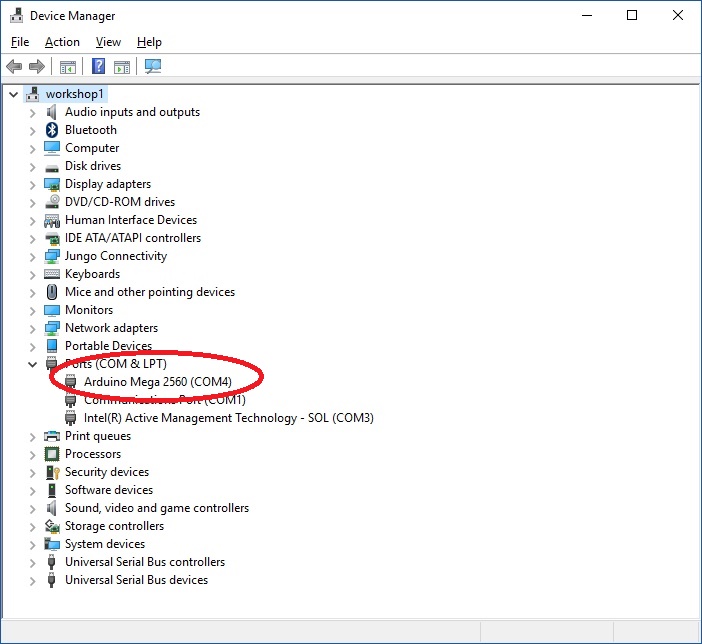
If your device driver has loaded correctly, you should see a “port” number next to the “Arduino Mega 2560” device. In the example above the device driver has linked the Ardunio Mega to COM4 on my computer. You will need this information later for the Ardunio IDE software in order to tell it where to find the Arduino Mega 2560 module.
More information on loading the Arduino IDE software can be found on the Arduino website at the following URL:
https://www.arduino.cc/en/Guide/windows
Once you have confirmed that the device drive has loaded correctly, launch your Arduino IDE software. First up you’ll need to tell the IDE software that we are connecting to a Arduino Mega 2560 module and what COM port to find the module at.