Thread Rating:
  • 5 Vote(s) - 4.2 Average
  • 1
  • 2
  • 3
  • 4
  • 5

WeatherDuino Pro2 'PLUS' Build
#11

(02-01-2017, 00:29)Werk_AG Wrote:  One doesnt ship to australia but using that wording I found some for a good price..amazing putting 2 different words in the search brings them up yet I couldnt find them before.

Thanks again


433Mhz Superheterodyne 3400 RF Transmitter Receiver kits for ARM/MCU

ones have the pins in the correct position to fit the boards (RX and WD):

http://www.ebay.com/itm/2Pcs-433Mhz-Supe...SwvzRXyRXG

http://www.ebay.com/itm/433Mhz-Superhete...SwjVVV0akY
Reply
#12

While I’m still waiting for most of my parts to arrive via ‘snail-mail’ from various parts of the world, my Meduino modules for the new receiver station have arrived just the other day, all well packed and safe and sound.  I plan to write this build thread at a lighter level, in an attempt to help new builders with maybe not so much electronics and/or WeatherDuino experience.  So I thought that I might kick off this build thread with a few words about this new (processor) module.  


As you may have noticed already, the new WeatherDuino Pro2 PLUS receiver station uses a new processor module.  The new processor module looks a little different to the old Arduino Nano that we have been using for some time with WeatherDuino.  The new processor module for the receiver station is the Meduino Mega2560 Pro Mini (Note - the transmitter and the wireless display still use the Arduino Nano module).  

There are a few differences apart from the slightly larger form factor, however probably the most notable for us is the increased memory space (256K of RAM and 8K of SRAM).  For a while now we have been pretty maxed out on the Nano module (memory) and the new module will allow the addition of new features and functions.  A breath of fresh air for WeatherDuino and a credit to WerkAG for all of the R&D put into this new receiver station.  If your new to this forum and reading this information for the first time and would like to read more about the new Pro2 PLUS, please refer to WerkAG’s Overview post at the following URL:

http://www.meteocercal.info/forum/Thread...r-Overview

From a programming point of view we continue to use the Arduino IDE software. The current version at the time of writing is v1.8.1 and it is downloadable from the Arduino website at the following URL:

https://www.arduino.cc/en/main/software

As I'm still waiting for my boards to arrive, next I'll go into a little bit of information on how to test your new Meduino Mega2560 Pro Mini module and get setup on your computer with the Arduino IDE software.

Mark R
Reply
#13

So you’ve got your new Meduino Mega2560 Pro Mini module and your probably keen to test it out and get started on something, even if your still waiting for your parts to arrive.  It's also probably not a bad idea to test your Meduino module and ensure that you haven’t received a faulty module, and in the process you’ll also get your computer setup with Arduino IDE software and ready for your WeatherDuino project.

Throughout this build thread I’ll presume that you are using a Windows based computer.  If you haven’t already done so, go to the Arduino website and download the IDE software at the following URL:

https://www.arduino.cc/en/main/software  

Once you’ve installed the IDE software on your computer, connect your Meduino module via a Mini USB cable.  Your computer should do a “plug and play” and load a device driver for the module, which should have been installed with the IDE software.  You should see the 'ON' LED on the Meduino module come to life upon connection to the computer.  

To confirm that the device driver has loaded correctly, go to Control Panel… System… Device Manager… Ports, and look for “Arduino Mega 2560” and confirm that there isn’t any yellow exclamation mark or question mark beside this device.  If there is you will need to look at reloading the device driver into windows.
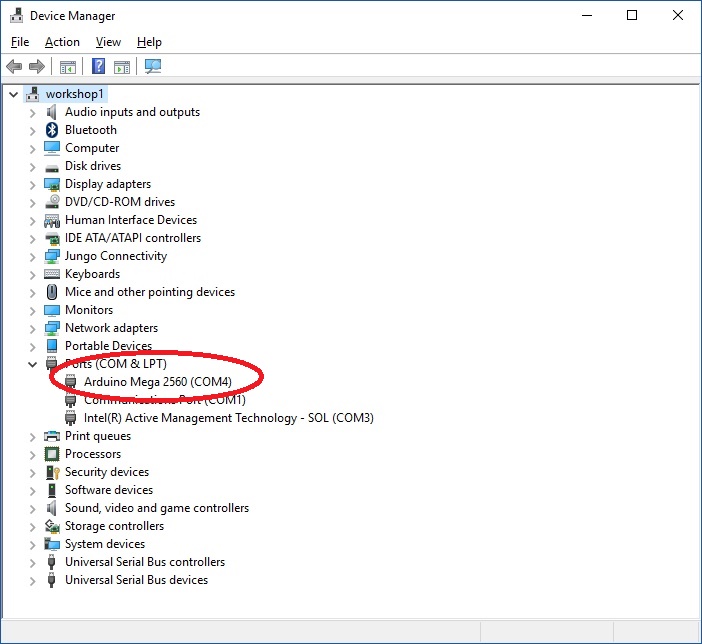
   

If your device driver has loaded correctly, you should see a “port” number next to the “Arduino Mega 2560” device.  In the example above the device driver has linked the Ardunio Mega to COM4 on my computer.  You will need this information later for the Ardunio IDE software in order to tell it where to find the Arduino Mega 2560 module.

More information on loading the Arduino IDE software can be found on the Arduino website at the following URL:

https://www.arduino.cc/en/Guide/windows

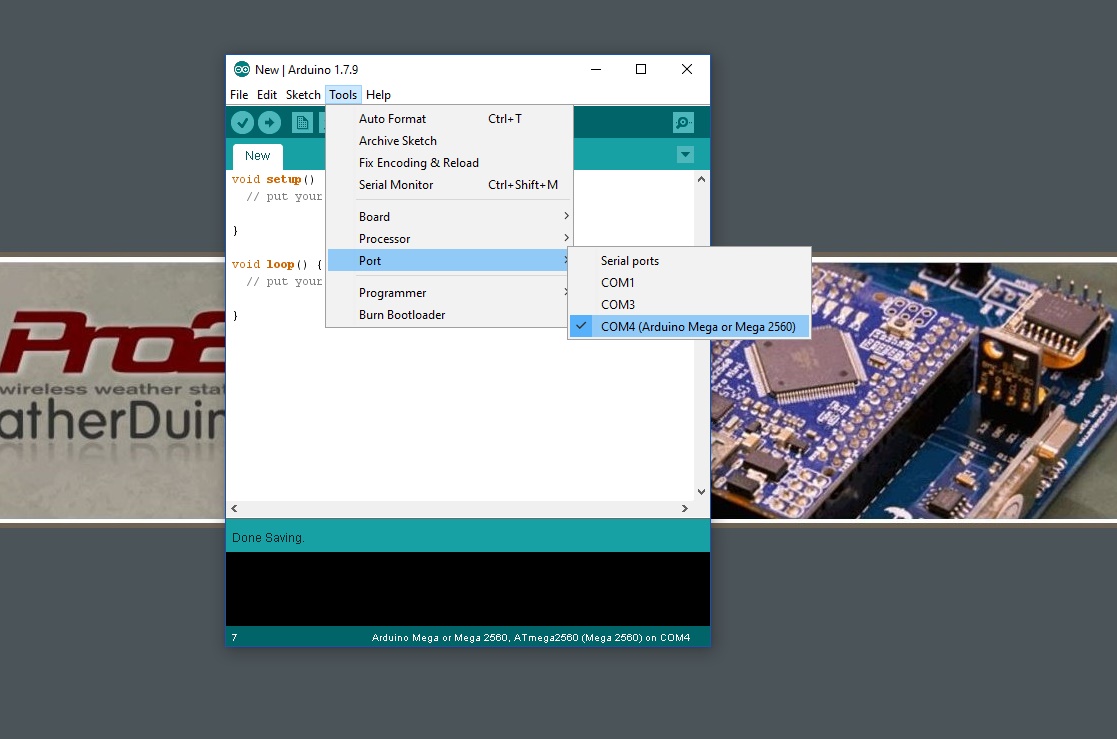
Once you have confirmed that the device drive has loaded correctly, launch your Arduino IDE software.  First up you’ll need to tell the IDE software that we are connecting to a Arduino Mega 2560 module and what COM port to find the module at.
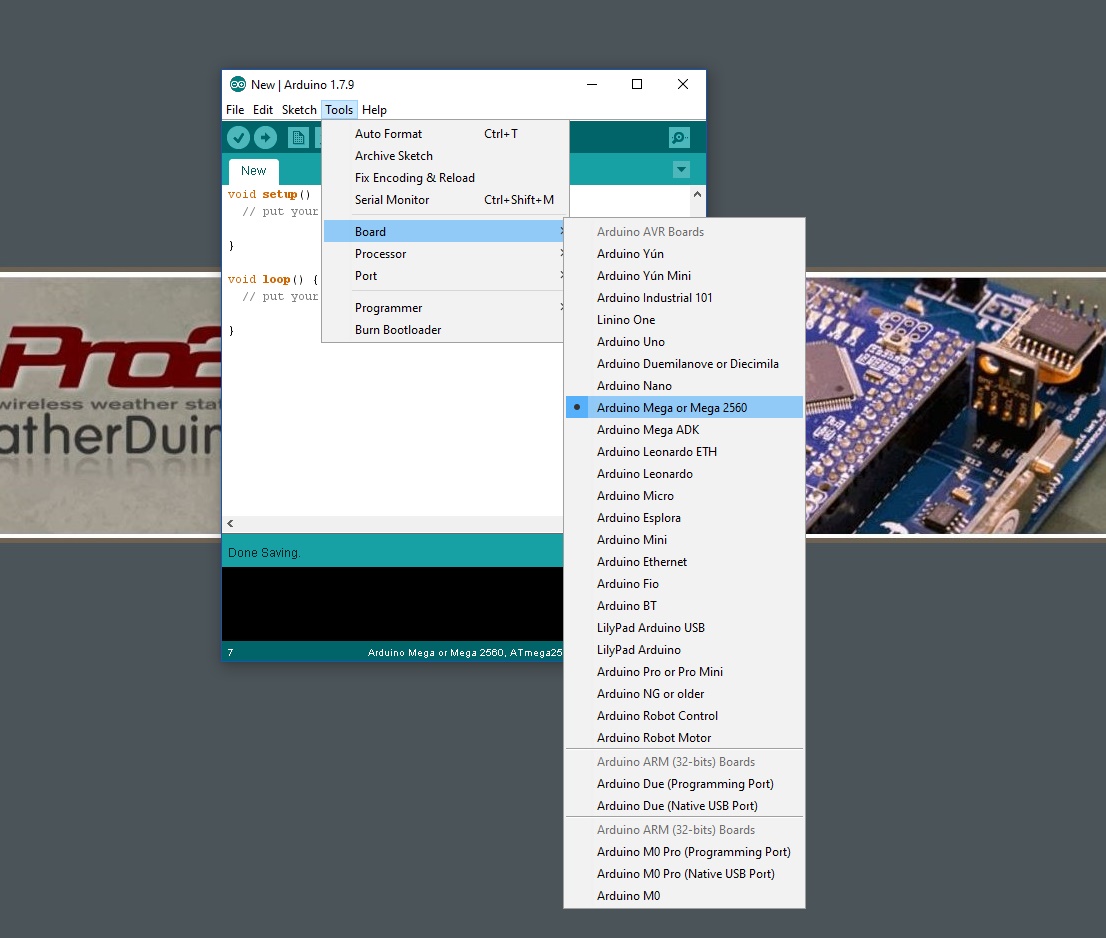
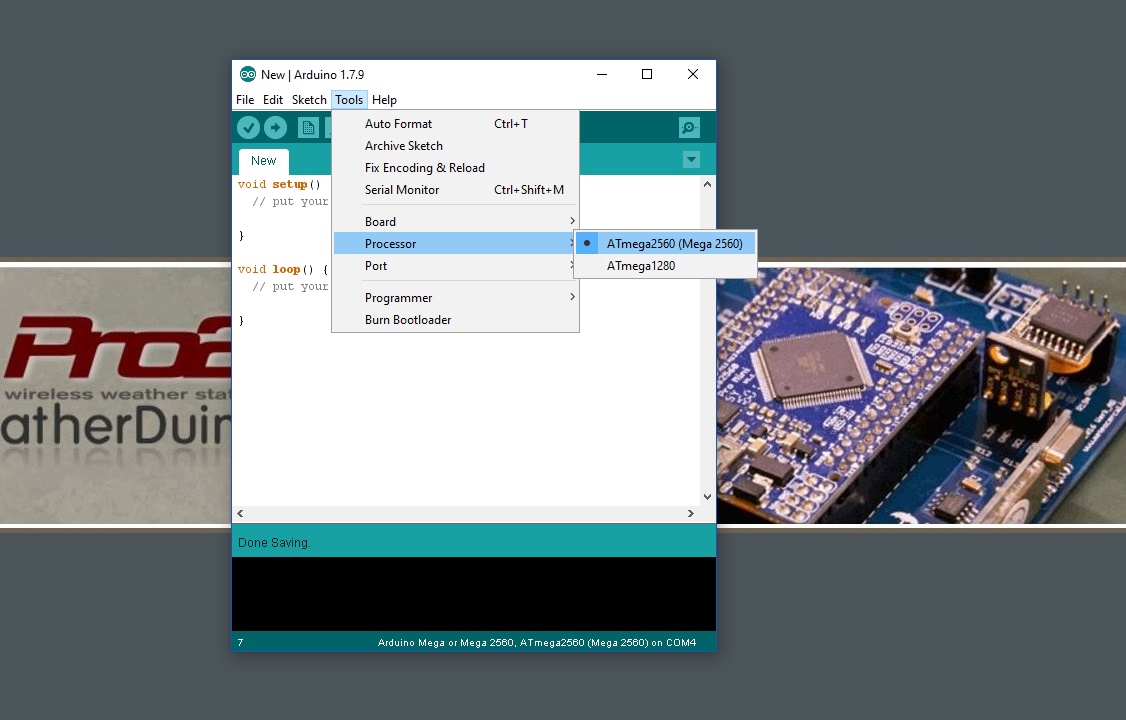


Reply
#14

Now we need to program the Arduino Mega 2560 module with a simply program to test it out and confirm that it is functioning correctly.  The Arduino modules have an onboard LED which is connected to digital pin 13 and this is convenient for testing our module.  In the IDE software (editor) the lower section is where you write your sketch or program, before uploading it into your Arduino Mega 2560 module.


The following program, or “sketch” as we call it will blink the onboard LED.  You need to copy this sketch into the IDE editor software, overwriting any existing text (or program lines).  Highlight the following lines of code, including the first “/*” and down to and including the last “}” symbol, then press CTRL-C on your keyboard to ‘copy’ it into the buffer (memory) on your computer. 


Code:
/*
This sketch blinks the onboard LED repeatedly.
Most Arduinos have an on-board LED you can control. On the UNO, MEGA and ZERO
it is attached to digital pin 13. LED_BUILTIN is set to
the correct LED pin independent of which board is used.
If you want to know what pin the on-board LED is connected to on your Arduino model, check
the Technical Specs of your board  at https://www.arduino.cc/en/Main/Products
*/
// the setup function runs once when you press reset or power the board
void setup() {
// initialize digital pin LED_BUILTIN as an output.
pinMode(LED_BUILTIN, OUTPUT);
}
// the loop function runs over and over again forever
void loop() {
digitalWrite(LED_BUILTIN, HIGH);   // turn the LED on (HIGH is the voltage level)
delay(550);                       // wait for a second
digitalWrite(LED_BUILTIN, LOW);    // turn the LED off by making the voltage LOW
delay(300);                       // wait for a second
}


Now go to your IDE program, and highlight the existing 'default' lines of code:


And then press CTRL-V on your keyboard to past the new lines of code from the computers buffer (memory) into the IDE editor.  If all goes well, you should see the new 'test' sketch in your IDE editor as shown below.

   
Reply
#15

The next step is to ‘verify’ the code, to ensure that there are no errors.  To do this, click on the ‘verify’ button (which looks like a little ‘TICK’ mark).  All going well, you should see the message ‘Done Compiling’ at the bottom of the editor and no strange error messages in the black status box at the bottom of the editor.


Now we load the sketch into the your Arduino Mega 2560 module.  To do this we simply click the ‘Upload’ button (which looks like a little ‘ARROW’ pointing to the right).


If all goes well, your Arduino Mega 2560 module should load the new sketch, perform a reboot, and shortly thereafter the LED (marked ‘L’ ) should start to blink.  If so you’ve correctly loaded your first sketch (program) into your Arduino Mega 2560 module and it is functioning correctly.  The sketch is now running inside the Arduino Mega 2560 module.  Each time you power on your module it will execute this program and the LED will start to blink.


Hopefully all went well with the above procedure and your Arduino Mega is working ok, and you feel a little bit of warmth and satisfaction that your project is finally starting to come to life.  If your totally new to the world of Arduino, I hope this helps you getting started.
 
Mark R
Reply
#16

Update 19/01/2017

That feeling when a package arrives..!!!!!!!   Smile  Smile  Smile 

   
Reply
#17

My boards arrived today Smile

Yours shouldnt be too far away
Reply
#18

Good timing Mr Postman..!!!!  My boards arrived today, all safe and sound.  So I popped down to Altronics and picked up a few parts to start the build.  Better get out the Weller soldering station,  heat her up and clean the tip...

   
Reply
#19

If your processor board has been shipped to you as a bare board without the headers fitted, then first up we need to solder the Dual InLIne (DIL) headers onto the Arduino Mega 2560 module.  


Use a fine tip on your soldering iron and not too high / excessive heat, together with some fine solder.  I like to use something like a 0.5mm or 0.8mm solder in 60/40 tin and lead with rosin core.  Tip here is to solder one corner pin of the header first, and then check that the header is straight and aligned on the board.  If it has moved slightly and is crooked, now is the time to straighten it up.  Once happy with the alignment I then solder the opposite corner pin, just to lock the header into place on the board.  I then solder every second pin along the header and then come back down the opposite side, again soldering every second pin.  This process spreads the heat out a little across the plastic of the header and the PCB and keeps it all a little cooler as you solder.  Then proceed to solder up the other alternate pins until all done.


Note that you don't need to install headers into every section of the Arduino Mega module, as shown below.  There are some pins that we don't require / use with the Weather Duino and there is no matching header socket on the receiver board. Once you have finished your soldering, check it under a magi-lamp for any solder bridges, shorts or dry joints. When happy clean up all the solder joints with some Isopropyl Alcohol and a clean tooth brush or similar to remove the dry rosin from the board.


If you had the test sketch loaded into your Arduino Mega (from above) you can now power up your processor and see that all is well and it is still functioning.
Reply
#20

Next up we want to solder the header sockets to the PCB.  Again we want to use a fine tip on the soldering iron and not too hot / excessive heat.  If your solder joint is bubbling and popping as it sets this can be a sign that the heat is a little on the high side.

First step we need to cut down the DIL header strips to size.  I use a sharp X-Acto knife and then sand and trim the cut end with some wet-and-dry emery paper.  


Once you have then trimmed to size, you will want to cut out the 'fifth' pin on one of the strips, so that it will fit onto the PCB.  I think this is easier than cutting into two sections, but the choice is yours.


Now we need to insert the headers and make sure they don't move while we 'tack' the end pins into place.  I lightly insert the processor module into the header sockets and this will both align the headers and hold them into place.  As we did when soldering the headrers onto the processor, solder the two opposite end pins of each header socket to hold it in place.  Then remove the processor module and proceed to solder the alternate pins of the header sockets as outlined above.

   
Reply


Users browsing this thread: 2 Guest(s)